If you'd like to cancel your Subpilot subscription, please follow the instructions below. The steps depend on where you originally subscribed — directly through the Subpilot app/website, through the App Store, or through Google Play.
Step 1 — Open your Profile settings
- Open the Subpilot app and go to your Profile.
- Tap the gear/settings icon in the top right corner.
- In Settings, scroll down and tap Manage Subscription.
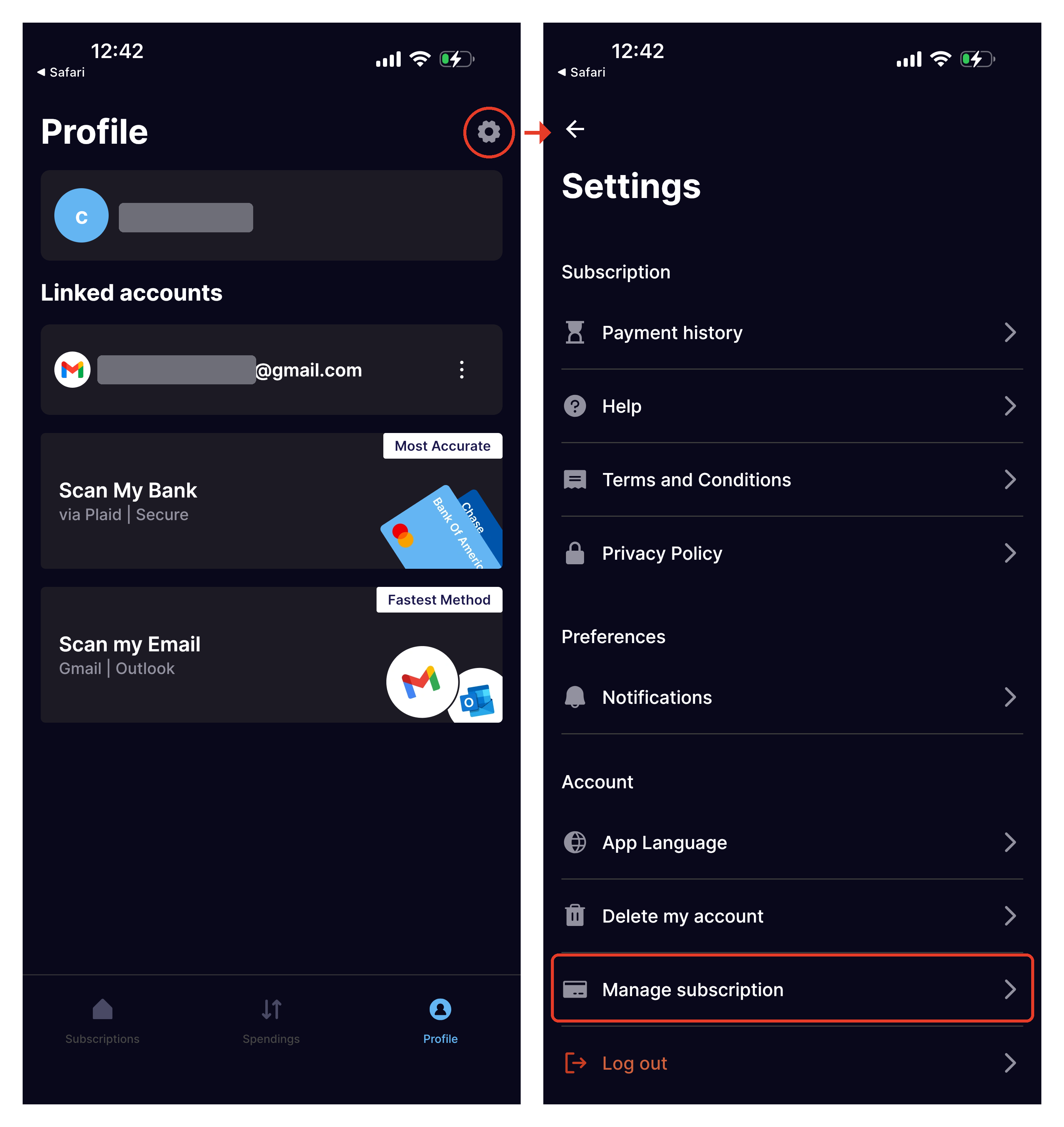
What happens next depends on how you originally paid for your subscription:
If you subscribed directly (web / card payment)
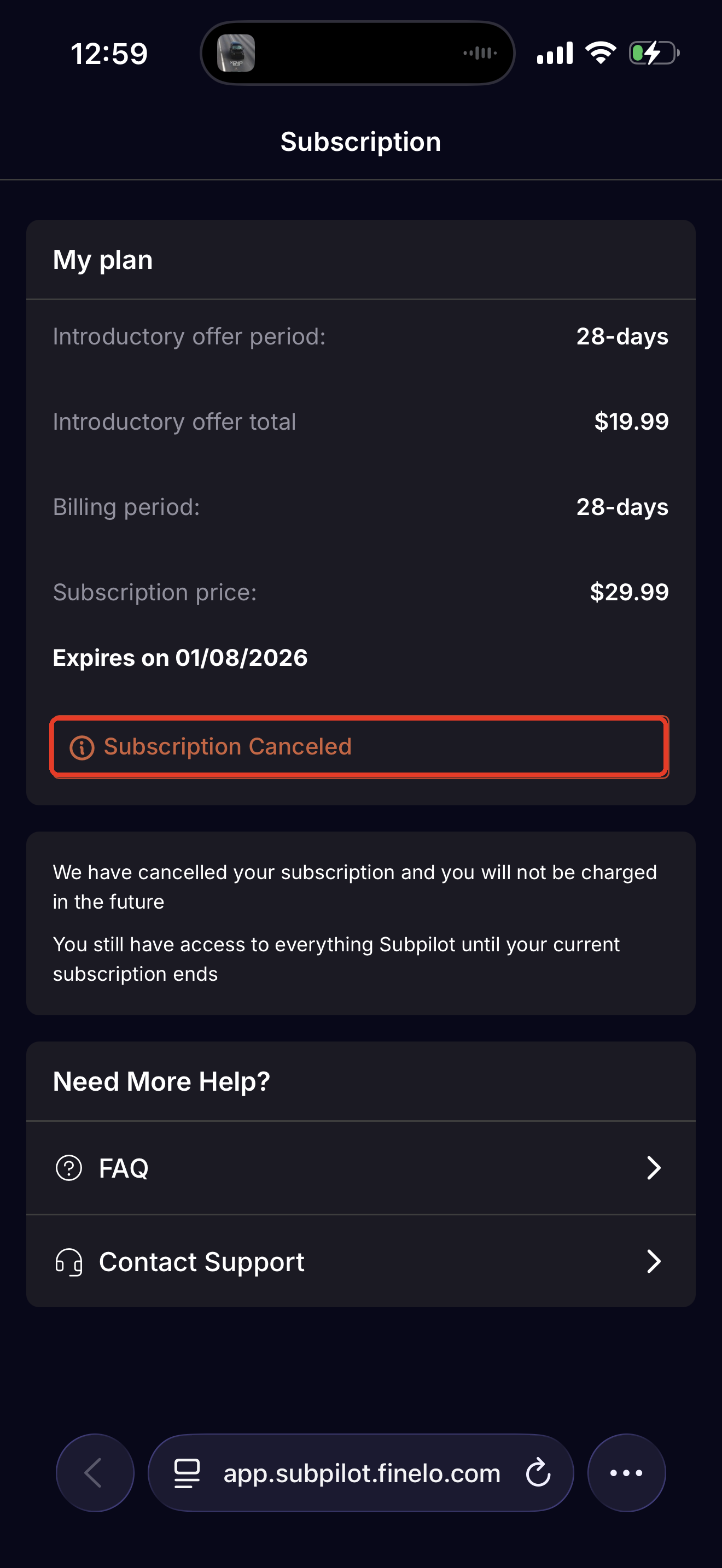
Tapping Manage Subscription will redirect you to the Subpilot web app.
- Tap Cancel my subscription.
- Confirm the cancellation.
The subscription status will change to "Subscription Canceled."
Note: You will keep full access to Subpilot until the end of your current billing period — you will not be charged again after that.
If you subscribed through the App Store / Google Play
Tapping Manage Subscription will open the native Subscriptions screen for your Apple/Google ID.
- Find Subpilot in the list of active subscriptions.
- Tap on it.
- Scroll down and tap Cancel Subscription.
- Confirm the cancellation.
For more details, see Apple/Google's guide:
How to cancel a subscription — Apple Support
How to cancel a subscription — Google Play Help
After Cancellation
You'll receive a confirmation on screen (and by email). You will continue to have access to Subpilot until the end of your current subscription period — after that, you will not be charged again.
If you have further questions, do not hesitate to contact us at support@subpilot.tech or by submitting a ticket at the Support Center.
Was this article helpful?
That’s Great!
Thank you for your feedback
Sorry! We couldn't be helpful
Thank you for your feedback
Feedback sent
We appreciate your effort and will try to fix the article